Creating social media videos sounds exciting—until you actually try to do it. That’s why finding the right AI tool for social media videos matters so much for beginners who want results without technical stress.
Using the right AI tool for social media videos allows beginners to create content without learning complex editing software.
There are timelines, layers, transitions, effects… and suddenly you’re stuck watching tutorials instead of pointing content.
Suppose you’re a beginner, this can feel overwhelming fast.
That’s exactly why AI video tools are becoming so popular. They remove the hardest part—editing—and let you focus on ideas instead.
In this guide, I’ll show you one AI tool that turns simple text into engaging social media videos, even if you’ve never edited a video before.
No hype. No technical jargon. Just a simple explanation.
Can Beginners Really Create Social Media Videos with AI?
Yes—but only if you use the right tool.
AI won’t magically make your videos viral.
It won’t replace creativity or consistency.
But it will:
- Save you hours of editing
- Help you create clean, professional-looking videos
- Make content creation less stressful
Think of AI as a shortcut around the technical mess—not a shortcut to success.
The AI Tool We’re Talking About: Canva AI Video
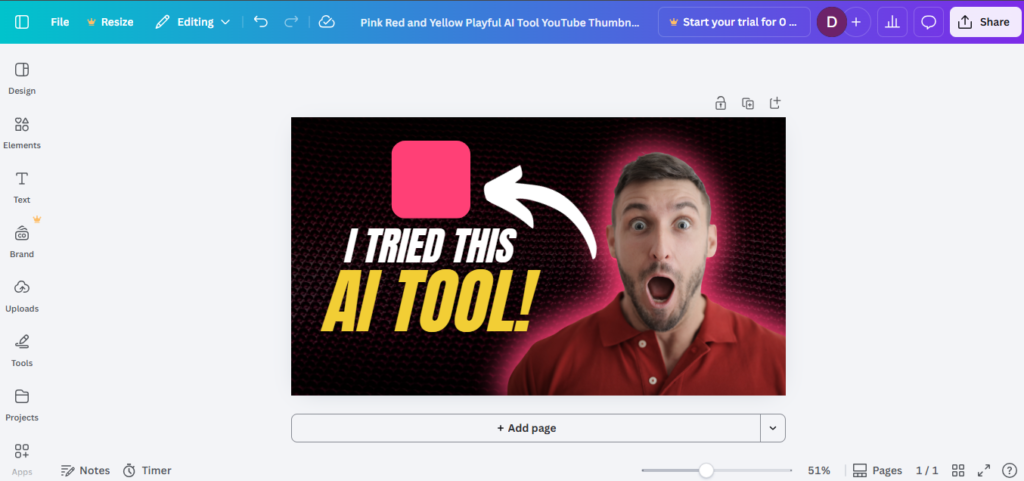
Canva is currently one of the easiest AI tools for social media videos, especially for beginners who want fast and clean results.
You’ve probably heard of Canva AI tool for social media videos for designs.
What many beginners don’t realize is that Canva now includes AI-powered video creation, and it’s surprisingly good.
With Canva AI, you can:
- Turn text into short videos
- Create Instagram Reels, YouTube Shorts, and TikToks
- Add animations, music, and captions automatically
And the best part?
You don’t need any editing experience.
What Can You Create Using Canva AI?
This is where Canva really shines for beginners.
You can create:
- Instagram Reels
- YouTube Shorts
- TikTok videos
- Quote videos
- Educational clips
- Promotional videos for your website or blog
Most templates are already optimized for vertical video, which is perfect for social media.
You just customize and post.
How Canva AI Video Works (Simple Steps)

Let’s break this down in the easiest way possible.
Step 1: Open Canva and Choose a Video Template
Search for:
- “Instagram Reel”
- “Short Video”
- “AI Video”
Pick any template you like.
Step 2: Add Your Text or Idea
Type:
- A short script
- A quote
- A tip
- A mini explanation
Canva AI helps place the text properly on the video.
Step 3: Let AI Handle Design & Animation
Canva automatically:
- Adjusts text timing
- Adds animations
- Suggests layouts
- Keeps everything visually balanced
Step 4: Add Music (Optional)
Choose from Canva’s music library or skip it if you want silent videos.
Step 5: Download and Post
Export the video and upload it to Instagram, TikTok, or YouTube Shorts.
That’s it. No editing stress.
Why Canva AI Is Perfect for Beginners
Most beginners fail at content creation because tools feel complicated.
Canva avoids that.
Here’s why it works so well:
- No learning curve
- Clean interface
- Drag-and-drop system
- Ready-made templates
- Works on mobile and laptop
You don’t need:
- A camera
- A microphone
- Editing software
- Technical skills
If you can type text, you can create videos.
How This AI Tool Helps You Get Website Traffic
When used correctly, an AI tool for social media videos can turn short-form content into long-term website traffic.
This is the most important part—and most people miss it.
AI tool for social media videos are attention tools, not money tools.
Here’s how Canva AI helps drive traffic to your website:
1. Create Short Educational Videos
Share:
- Tips
- Quick guides
- Simple explanations
2. Create Curiosity
Don’t explain everything in the video.
End with:
“Full guide on my website”
3. Add Your Website Link
- Instagram bio
- YouTube description
- TikTok profile
4. Send Viewers to In-Depth Content
Your blog does the real work:
- Builds trust
- Improves SEO
- Grows long-term traffic
This is how social media + blogging work together
Free vs Paid Canva AI (Honest Breakdown)
Let’s be real about this.
Free Version:
- Limited templates
- Watermark on some assets
- Basic AI features
Paid Version (Canva Pro):
- More AI tools
- Premium templates
- No watermark
- Better music & animations
Beginners can start free and upgrade later if needed.
Common Mistakes Beginners Should Avoid
Even with AI, mistakes can slow you down.
Avoid these:
- Posting random videos without a goal
-
- Overusing animations
- Making videos too long
- Expecting instant traffic
- Copying others without adding value
AI helps—but strategy matters more.
Simple Content Plan Using This AI Tool
If you’re confused about what to post, try this:
- 3 short videos per week
- One tip per video
- One clear message
- One call-to-action (visit website)
Consistency beats perfection.
Final Thoughts
AI tools like Canva AI tool for social media videos have made content creation much easier—but they don’t replace effort.
You still need:
- Ideas
- Consistency
- Patience
But if you’re a beginner, this tool removes the biggest obstacle: fear of editing.
Start small. Learn slowly. Improve as you go.
At Future Desk Hub, our goal is to help beginners learn digital skills without pressure, confusion, or fake promises—and tools like this make that journey much smoother.
If you’re new to AI, you can start with our guide: Best AI Tools for Beginners (Simple, Free & Easy to Use)
It’s a great place to learn everything from scratch, without confusion or technical jargon.
If you need any help, feel free to ask—we’re always here to support you.